
Clip Studio Paint
CELSYS,Inc.Art & Design
4.53.10K Reviews
- Version
- 5.1.4
- Installs
- 10.00M
- Age Rating
- Everyone
Screenshots
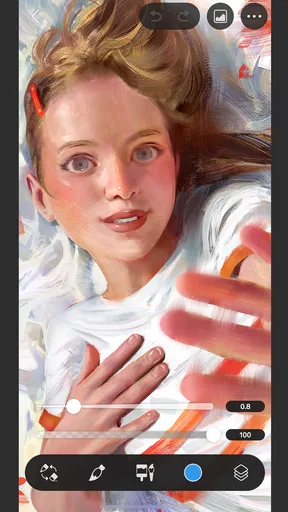
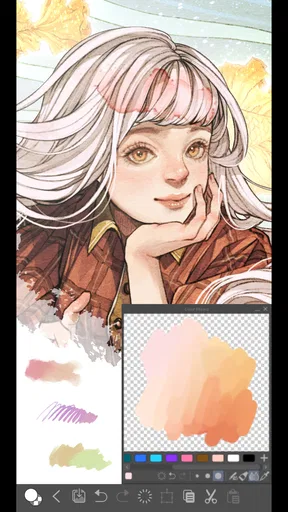
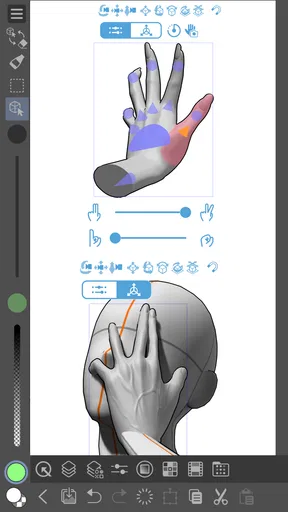
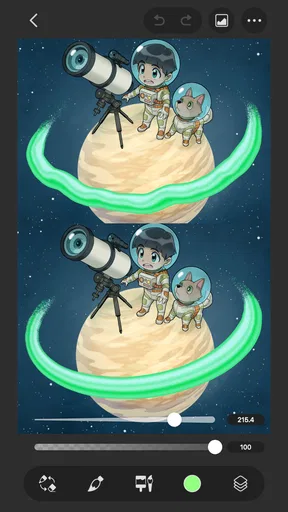
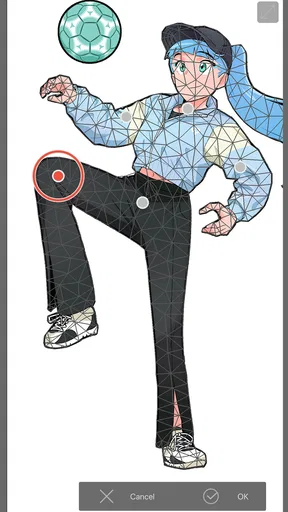
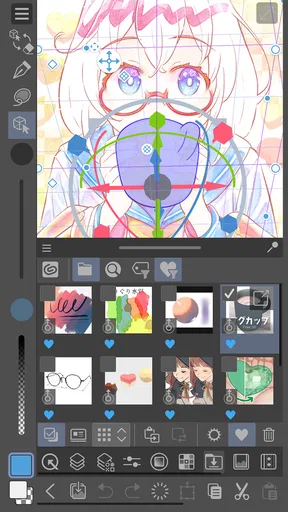

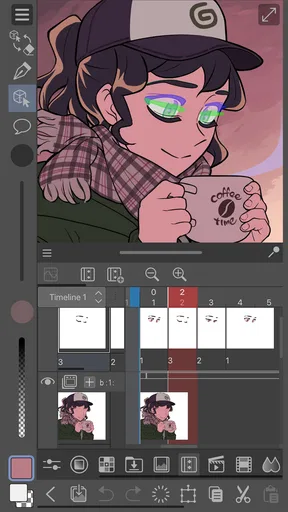
Our Review of Clip Studio Paint
 Analysis by Appyee
I judge drawing software by what happens before the first mark: can I find the canvas, understand the controls, and settle into a way of working that fits my hands and eyes? Clip Studio Paint is a substantial art app rather than a bare-bones sketch pad, and that breadth can be both its appeal and its first hurdle. I’d consider it if I wanted room to grow from casual drawing into more structured illustration, comics, or animation, while keeping in mind that a large toolkit asks for time and attention.
Finding your way around a serious art workspace
Clip Studio Paint is an art and design app from CELSYS,Inc. It is free to install, with optional in-app purchases ranging from $0.99 to $119.99 per item. The app is rated for Everyone, has a 4.5 average from around 32,000 ratings, and has passed 10 million installs. Version 4.2.2 is current. Those figures point to a widely used tool, but they do not tell me whether its workspace will suit you; that depends more on how you like to draw and how much setup you are willing to do.
The first impression is welcoming, but “intuitive” does not mean every tool is immediately obvious. The range of brushes and specialist options creates choices that a simpler drawing app usually avoids. I’d start with a small, personal brush set and learn the controls I actually use before exploring everything else. That makes the app feel less like a crowded studio and more like a workspace I’ve arranged for myself. Tutorials and guides can help, though they work best when I follow one to solve a specific problem rather than trying to absorb the whole app at once.
Readability, touch, and sensory comfort
On a phone, a canvas and a full set of controls are competing for limited screen space. That matters if you need large, clearly separated targets, rely on magnification, or find busy screens tiring. A larger display can make detailed drawing and panel work more comfortable, while a phone is better for quick sketches and smaller edits. I would test the interface at the size and viewing distance I expect to use, rather than assume that a layout comfortable on one device will feel the same on another.
Motor comfort is just as personal. Drawing with touch can be convenient, but precise strokes may be harder if you have limited dexterity, hand tremors, or discomfort from holding a device for long periods. A stylus and a stable support may make a session easier, but they do not remove the need to check whether the controls and gestures suit your movement. I’d try a short, low-pressure sketch first, then see whether navigation, undoing a stroke, and switching tools feel manageable before committing to a long illustration.
For sensory access, I’d pay attention to visual clutter and the feel of the workflow. The app’s range of tools is useful, but frequent switching between panels can interrupt concentration. Keeping a focused set of brushes and working in short stages may help reduce that friction. The same approach is useful if you are drawing somewhere noisy or distracting: decide on the next small task, such as roughing in a face or cleaning one panel, instead of trying to manage a whole project at once.
The Artistic Playground
So, what’s the big deal with Clip Studio Paint? Well, it's got this magical mix of features that cater to both beginners and pros. When I first dove into it, the interface felt super intuitive. It’s like they knew exactly what I needed before I even did. And trust me, it's not just about pretty brushes. The app offers a stunning array of tools—from pencils to watercolors—that mimic real-life textures. Digital art has never felt so authentic.
Features That Stand Out
Ever try to create a comic and get tangled in complicated layers? Not here! Clip Studio Paint makes comic creation a breeze with its specialized panels. It’s like having a mini comic studio right in your pocket. And if you’re into animation, oh boy, are you in for a treat. The animation features are robust, letting you bring your characters to life with just a few taps. No more wrestling with bulky software on a desktop.
For a practical comic workflow, I would separate rough layouts from finished line work rather than trying to polish each panel as I go. That keeps early composition changes from turning into a pile of small corrections. The specialized panel tools are a meaningful distinction from general-purpose sketch apps, but they do not make storytelling decisions for you: page rhythm, speech placement, and clear reading order still need an artist’s eye. If you only want to doodle for a few minutes, those extra controls may feel like overhead rather than a benefit.
Animation is another reason to choose a more capable drawing tool, but it also changes what a project demands. I’d treat it as a sequence of small experiments—make a brief movement, check whether the timing reads, and refine only what needs attention—rather than begin with a complex scene. That approach is useful on a mobile device, where a crowded timeline and detailed drawing can be harder to manage than a still image. If your main goal is straightforward frame-by-frame work with the simplest possible interface, a dedicated animation app may be easier to learn.
But what really caught my eye was the community feature. You can share your work and get inspired by others. I found this super motivating, especially on days when my creative juices weren't flowing. It's like having an art class right in your app.
Making it fit everyday routines
A realistic use for me is a lunch break sketch: I open a canvas, rough out a character pose, and save the more demanding decisions for later. Another is planning a comic page away from my desk, using simple shapes to test the panel order before I spend time on clean lines. These are the moments when a phone-sized art workspace earns its place. For a long painting session, though, I would rather use a larger screen and a comfortable setup than force a detailed task into a cramped space.
One useful habit is to decide what the session is for before opening the brush list. A thumbnail, a color study, and finished line art need different levels of precision. Keeping those stages separate helps me avoid endlessly changing brushes when the real issue is that the drawing is not composed yet. It also makes it easier to stop and return later: I can see whether I was planning, refining, or finishing instead of having every decision tangled together.
Compared with a basic sketch app, this one makes more sense when I want comic-oriented tools, textured painting, or room to experiment with animation. A lightweight note-taking or doodling app is still the better pick for a quick diagram or a casual mark-up, because a specialist workspace can slow down tasks that need no layers or elaborate brush choices. Desktop art software may be more comfortable for long, precision-heavy projects simply because there is more room to work. I see the mobile app as a capable companion for making art, not a reason every artist must abandon their preferred setup.
Who will benefit—and where the friction remains
I’d recommend trying it if you are learning illustration, building comic pages, or want one app that can support more than casual sketching. Beginners can explore at their own pace, while experienced artists may appreciate having specialized tools available when a project calls for them. The best fit is someone who enjoys learning a workspace and expects to return to it; a person who just wants to draw a quick circle or jot a visual reminder may be happier with something simpler.
There are trade-offs. A broad toolset can make it harder to find the next action, and small touch controls may not suit every hand or screen. Drawing on a phone also asks you to balance canvas space against interface space, while animation and multi-panel work demand more planning than a spontaneous sketch. In-app purchases are available, so I would check what a particular workflow requires before assuming every option is included in the free install. The app is not automatically the most comfortable choice for low-vision users, people who need minimal visual stimulation, or anyone whose motor control makes precise touch work tiring; trying a short session is more useful than relying on a general promise of ease.
It is also worth deciding where your finished work will go before you begin a large project. If you mainly draw for personal practice, a simple sketch routine may be enough. If you are making comics or animation, think through the stages you will need—planning, drawing, review, and any later finishing work—and test a small sample first. That reveals whether the app’s controls and screen layout support your actual process without turning a promising idea into a frustrating commitment.
Why You’ll Love It
Here's the thing, whether you're doodling away on your commute or working on a full-blown masterpiece, Clip Studio Paint has got your back. The app is light, responsive, and doesn’t guzzle battery life like there’s no tomorrow. It’s perfect for those spontaneous moments of creativity.
And if you’re worried about the learning curve, don’t be. The tutorials and guides are incredibly helpful. In no time, I was navigating the features like a pro. It almost felt like the app was cheering me on, pushing me to go further and try new things. Creativity has never been more accessible.
Wrapping It Up
All in all, Clip Studio Paint is a powerhouse for digital artists. It combines functionality with a user-friendly experience, making it a top choice for both novices and seasoned artists alike. Whether you're sketching, painting, or animating, this app provides the tools and inspiration you need to unleash your creativity. So, if you're ready to take your digital art to the next level, give Clip Studio Paint a whirl. You might just find your new favorite art tool.
My inclusive verdict is positive but not unconditional: the app offers meaningful creative range, especially for people interested in comics, painting, and animation, yet a rich interface is not the same as an easy interface for every body or situation. I would begin with a small sketch, test the controls on the device I plan to use, and explore one workflow at a time. If that feels comfortable, there is plenty here to grow into; if it feels crowded or physically demanding, a simpler drawing app or a larger-screen setup may be the kinder choice.
Privacy and Permissions
See what permissions an app requests and how it handles your data.
- Location
- approximate location (network-based), precise location (GPS and network-based)
- Camera
- take pictures and videos
- Wi-Fi connection information
- view Wi-Fi connections
- Other
- view network connections, pair with Bluetooth devices, access Bluetooth settings, full network access, run at startup, draw over other apps, control vibration, prevent device from sleeping, modify system settings
Verdict
Strengths of Clip Studio Paint
- Highly customizable brushes enhance creativity.
- Cross-platform support for seamless use.
- Extensive tutorial resources for beginners.
- Frequent updates with new features.
- Efficient layer management for complex projects.
Limitations of Clip Studio Paint
- Subscription model can be costly over time.
- Requires a learning curve for new users.
- Occasional performance lags on older devices.
- Limited free version features.
- Some features need additional purchases.
Similar Picks in This Category
View All
Canva: AI Photo & Video Editor
Canva4.8

PENUP – Drawing-sharing SNS
Samsung Electronics Co., Ltd.4.5

Crafto
Kutumb App4.6

Sketchbook
Sketchbook4.1

ibis Paint X
ibis inc.4.5

Adobe Express: AI Photo, Video
Adobe4.6
Frequently Asked Questions
What platforms is Clip Studio Paint available on?
Clip Studio Paint is available on multiple platforms, including Windows, macOS, iOS, and Android. This versatility allows artists to work across different devices seamlessly, whether on a desktop or a mobile device. The cross-platform functionality ensures that your projects can be accessed and edited wherever you are.
Is Clip Studio Paint suitable for beginners?
Yes, Clip Studio Paint is suitable for beginners as well as professional artists. It offers a user-friendly interface with a variety of tutorials and resources to help newcomers get started. However, the extensive features might feel overwhelming at first, but with practice, beginners can easily master the basics.
What are the key features of Clip Studio Paint?
Clip Studio Paint boasts a range of key features, such as customizable brushes, vector tools, and advanced color options. It supports both raster and vector graphics, making it ideal for illustration and comic creation. Additionally, it includes animation capabilities, which are a significant plus for users wanting to create animated content.
Does Clip Studio Paint require a subscription?
Clip Studio Paint offers both a one-time purchase option and a subscription model. Users can choose based on their needs and budget. The subscription model includes regular updates and access to the latest features, while the one-time purchase might be more cost-effective for occasional users.
Can Clip Studio Paint be used offline?
Yes, Clip Studio Paint can be used offline, which is a great advantage for artists who may not always have internet access. However, some features, such as cloud storage, require an internet connection. Offline functionality ensures that your creative work isn't interrupted by connectivity issues.
